
Das kann es — auf einen Blick
What it can do — at a glance
- Ein Knopf, eine fertige Live-ISO. Dein laufendes Fedora wird zu einer startfähigen Datei, die du direkt aus dem Fenster auf einen Stick schreiben kannst.
- Du bestimmst, was hineinkommt: nur das nackte System · das System mit deinen Einstellungen (schlank, aber sofort brauchbar) · oder alles, samt deiner Dateien.
- Zum Weitergeben. In diesem Modus werden Passwörter, Funknetz-Zugänge, Schlüssel und deine persönlichen Ordner aus dem Abbild entfernt. Beim Start legt Fedora einen Live-Benutzer an, damit der neue Besitzer hineinkommt.
- Startet auch mit Secure Boot. Die fertige ISO nimmt Fedoras eigene, unterschriebene Startdateien — kein selbst gebastelter Startteil.
- Der Stick startet auf neueren und älteren Rechnern. Beide Startarten sind eingebaut.
- Die fertige Live-ISO kann sich selbst installieren. Fedoras eigenes Installationsprogramm reist mit und liegt im gestarteten Klon auf dem Schreibtisch.
- Deutsch oder Englisch, hell oder dunkel — es richtet sich nach deinem System, mit einem Knopf umschaltbar.
- One button, one finished live ISO. Your running Fedora becomes a bootable file you can write to a stick straight from the window.
- You decide what goes in: the bare system only · the system plus your settings (lean but ready to use) · or everything, including your files.
- For passing it on. In that mode passwords, Wi-Fi credentials, keys and your personal folders are stripped from the image. At start Fedora creates a live user so the new owner can get in.
- Boots with Secure Boot, too. The finished ISO uses Fedora’s own signed boot files — no home-made boot part.
- The stick boots on newer and older computers. Both boot methods are built in.
- The finished live ISO can install itself. Fedora’s own installer travels along and sits on the desktop of the running clone.
- German or English, light or dark — it follows your system and can be switched with one button.
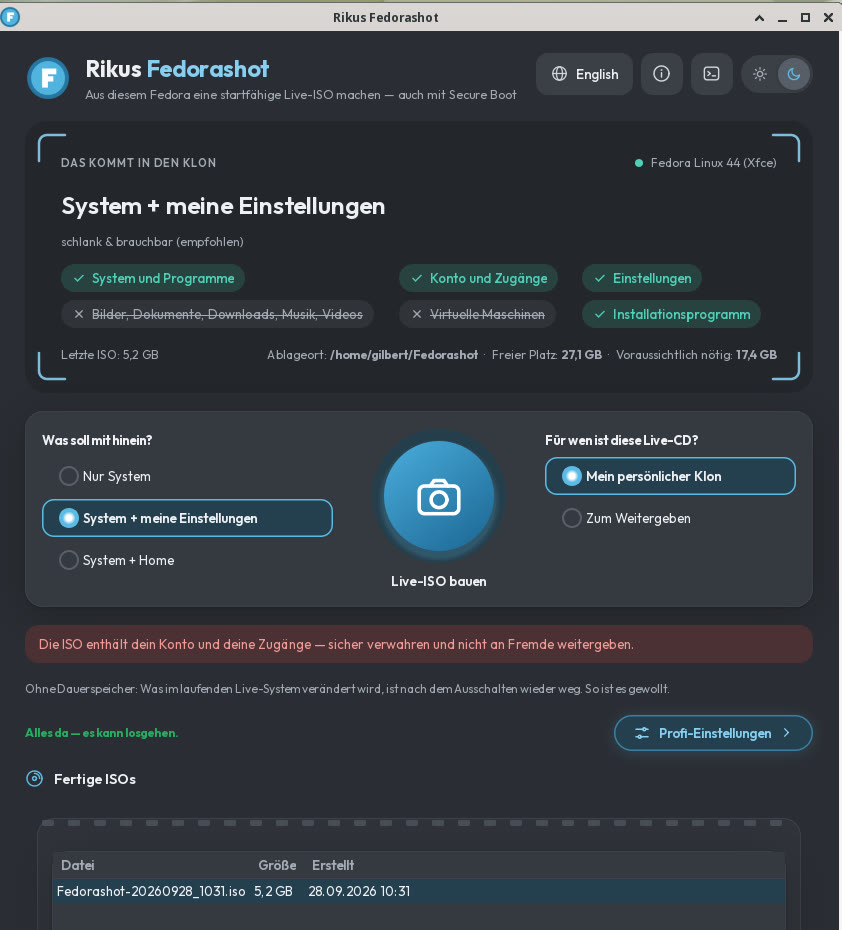
So sieht es aus: oben, was in den Klon kommt — darunter links was, rechts für wen, in der Mitte der Auslöser. Unten die fertigen Live-ISOs.
This is how it looks: at the top what goes into the clone — below on the left what, on the right who for, the release button in the middle. The finished live ISOs at the bottom.
Die eigene Paketquelle
Our own package source
Einmal eintragen — und jede neue Fassung kommt von selbst.
Set it up once — every new version then arrives on its own.
Rikus Fedorashot hat eine eigene Paketquelle. Das ist dieselbe Technik, mit der dein Fedora auch alle anderen Programme aktuell hält. Du trägst sie einmal ein — danach erscheint jede neue Fassung ganz normal bei deinen Systemaktualisierungen. Gebaut und geprüft für Fedora 44.
Rikus Fedorashot has its own package source. It is the same technique your Fedora uses to keep all other programs current. You add it once — after that every new version simply shows up with your normal system updates. Built and tested for Fedora 44.
Schritt 1 — die Quelle eintragen. Eine Zeile, die deinem Fedora sagt, wo es nachschauen soll:
Step 1 — add the source. One line telling your Fedora where to look:
sudo dnf config-manager addrepo --from-repofile=https://rpm.rikus.info/fedora/rikus.repoSchritt 2 — einspielen. Dein System fragt dabei dreimal nach (Is this ok [y/N]): zweimal, ob es unserem Schlüssel vertrauen soll — beide Male mit demselben Fingerabdruck —, und einmal, ob es installieren soll. Jedes Mal mit y und der Eingabetaste antworten. Die Schlüsselfrage kommt nur beim ersten Mal. Alles, was Fedorashot braucht, kommt dabei von selbst mit:
Step 2 — install. Your system asks three times (Is this ok [y/N]): twice whether to trust our key — both times with the same fingerprint — and once whether to install. Answer y and press Enter each time. The key question only comes the first time. Everything Fedorashot needs comes along by itself:
sudo dnf install rikus-fedorashotSpäter aktuell halten — das macht dein normales Systemupdate ohnehin mit. Wenn du nur dieses Programm erneuern willst — oder wenn du schon eine Testfassung von Fedorashot hattest und Schritt 2 „Nichts zu tun“ meldet:
Keeping it current later — your normal system update does it anyway. If you want to renew only this program — or if you already had a test version of Fedorashot and step 2 says “Nothing to do”:
sudo dnf upgrade rikus-fedorashotWarum ein Schlüssel? Jedes Paket ist unterschrieben. Daran erkennt dein Rechner, dass es wirklich von uns kommt und unterwegs niemand etwas verändert hat. Beim Fragen zeigt dein Rechner den Fingerabdruck des Schlüssels — er muss lauten:
Why a key? Every package is signed. That is how your computer can tell it really comes from us and nobody changed anything on the way. When it asks, your computer shows the key’s fingerprint — it has to read:
A45B7C39D3EECDD3D8B6E91B467AEE3D046D5857Freischalten — einmal, dann nie wieder
Unlocking — once, then never again
1. Oben auf Freischaltcode anfordern drücken und Name, E-Mail und Land eintragen.
1. Press Request unlock code above and enter name, e-mail and country.
2. Die E-Mail öffnen — der Code steht darin.
2. Open the e-mail — the code is inside.
3. Beim ersten Start den Code einmal eintippen. Der Rechner sollte dabei mit dem Internet verbunden sein. Das war es.
3. Type the code once at the first start. The computer should be connected to the internet for this. That is all.
Was es kann
What it does
Drei Möglichkeiten, was hineinkommt
Three choices of what goes in
Nur System — leerer Schreibtisch, wie frisch installiert. System + meine Einstellungen — schlank, aber sofort brauchbar (empfohlen). System + Home — alles komplett, samt deiner Dateien.
System only — empty desktop, like a fresh install. System + my settings — lean but ready to use (recommended). System + Home — everything, including your files.
Zwei Möglichkeiten, für wen
Two choices of who it is for
Mein persönlicher Klon — du meldest dich darin mit deinem eigenen Passwort an. Zum Weitergeben — Konten, Passwörter und Zugänge werden herausgenommen, Fedora legt beim Start einen Live-Benutzer an.
My personal clone — you log in with your own password. To pass on — accounts, passwords and credentials are removed, Fedora creates a live user at start.
Ehrliche Platz-Vorschau
Honest space preview
Vor dem Bau steht da, wie viel Platz gebraucht wird — passend zu deiner Wahl. Reicht der Platz nicht, sagt es das vorher, nicht nach einer halben Stunde.
Before the build it tells you how much space is needed — matching your choice. If there is not enough, it says so beforehand, not after half an hour.
Grosse Ordner abwählbar
Leave out large folders
Filme, Sicherungen, virtuelle Maschinen — jeder grosse Ordner steht einzeln da, mit seiner Grösse. Häkchen weg heisst: kommt nicht mit.
Films, backups, virtual machines — every large folder is listed separately with its size. Unticked means: it stays out.
Alle fertigen ISOs im Blick
All finished ISOs at a glance
Unten im Fenster stehen alle fertigen Live-ISOs mit Grösse und Datum. Die ausgewählte ist die, die auf den Stick kommt.
At the bottom of the window every finished live ISO is listed with size and date. The selected one is the one that goes onto the stick.
Auf den Stick schreiben — mit Kontrolle
Write to the stick — with a check
Der Stick wird direkt aus dem Fenster beschrieben, der Fortschritt steht in Prozent da. Danach kannst du nachprüfen lassen, ob alles heil angekommen ist.
The stick is written straight from the window, with the progress shown in percent. Afterwards you can have it checked that everything arrived intact.
Installieren aus der fertigen ISO
Install from the finished ISO
Im gestarteten Klon liegt Auf die Festplatte installieren auf dem Schreibtisch — Fedoras eigenes Installationsprogramm, auf Deutsch, mit deiner Sprache, Tastatur und Zeitzone schon vorgeschlagen.
In the running clone Install to Hard Drive sits on the desktop — Fedora’s own installer, with your language, keyboard and time zone already suggested.
Dein Rechner bleibt unberührt
Your machine stays untouched
Fedorashot liest dein System und schreibt eine neue Datei. Abbrechen geht jederzeit — es wird sauber aufgeräumt, keine halbe Datei bleibt liegen.
Fedorashot reads your system and writes a new file. You can cancel at any time — everything is cleaned up, no half file is left behind.
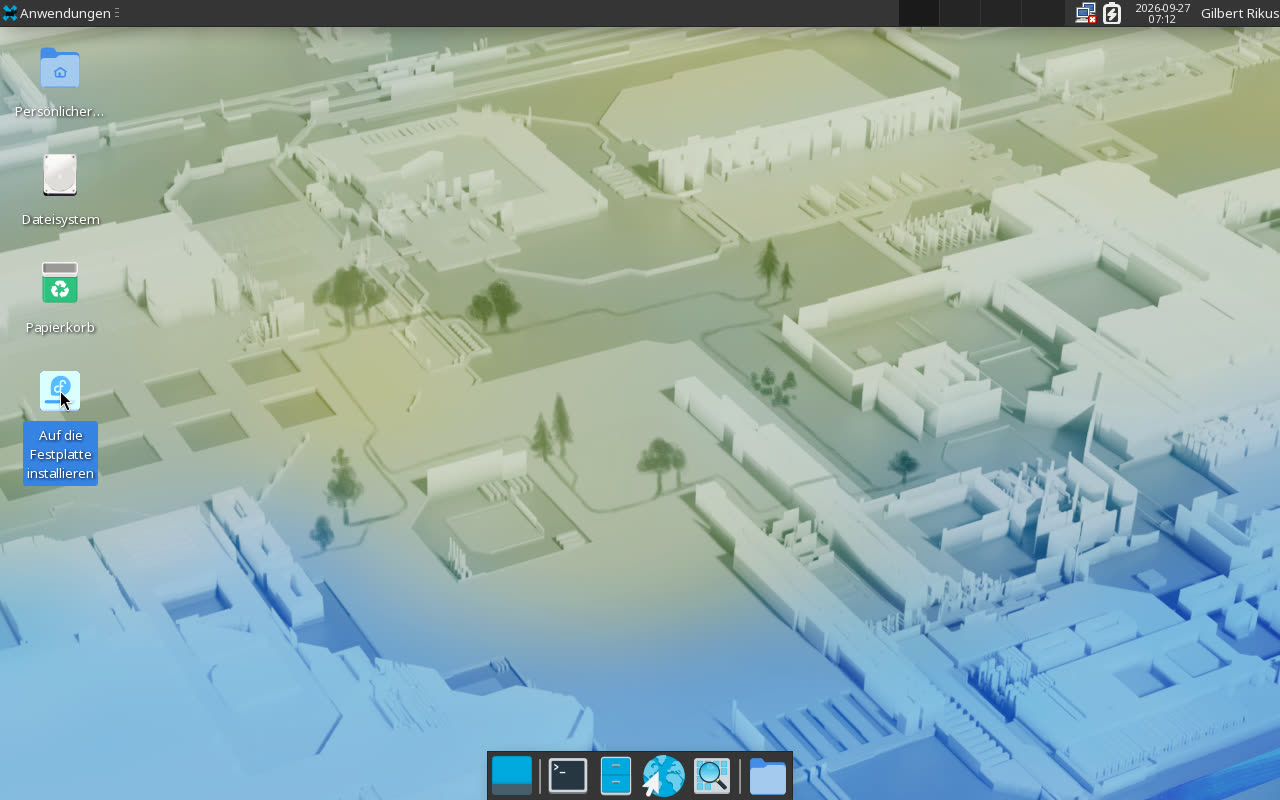
Der gestartete Klon: dein Schreibtisch — und links das Symbol, mit dem er sich auf eine Festplatte installiert.
The running clone: your desktop — and on the left the icon that installs it to a hard drive.
So geht’s
How it works
1. Fedorashot aus dem Startmenü öffnen (unter System).
1. Open Fedorashot from the start menu (under System).
2. Links wählen, was hineinkommt, rechts, für wen die Live-ISO ist.
2. Choose what goes in on the left, and who the ISO is for on the right.
3. Auf den runden Knopf Live-ISO bauen drücken. Es kommt eine kurze Vorschau — wie gross es wird und wie lange es dauert — und dann die Passwortfrage.
3. Press the round Build live ISO button. A short preview appears — how big it will be and how long it takes — and then the password prompt.
4. Warten. Der Ring zeigt, wie weit der Bau ist.
4. Wait. The ring shows how far the build has come.
5. Fertig: Die ISO steht unten in der Liste. Auswählen und Auf USB-Stick schreiben drücken.
5. Done: the ISO appears in the list below. Select it and press Write to USB stick.
6. Den Rechner, auf dem der Klon starten soll, vom Stick starten — meist mit einer Taste beim Einschalten (oft F12, F11 oder Esc).
6. Start the computer that should run the clone from the stick — usually with a key at power-on (often F12, F11 or Esc).